





What Are App Permissions? The Complete Android and iPhone Privacy Guide
Every app you install asks for access to something, whether it is your camera, your location, or your contacts. This guide explains what app permissions are, why apps request them, and how to check...
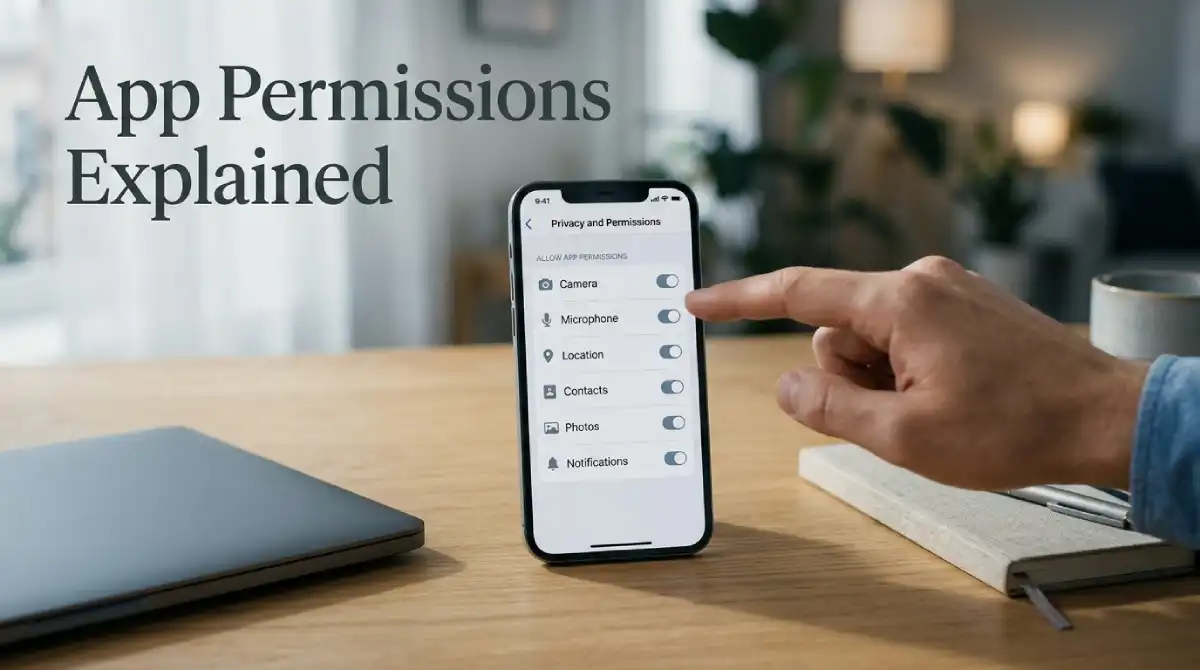
App permissions are the specific pieces of access an app requests from your phone. Common examples include your camera, location, or contacts list. Granting one lets that app use that particular feature or data. Denying it usually just disables the related function, without breaking the rest of the app.
Table Of Content
- What Exactly Is an App Permission?
- Why Do Apps Actually Need These Permissions?
- The Most Common Permission Types, Explained
- How to Check and Change Permissions on Android
- How to Check and Change Permissions on iPhone
- Which Permissions Should You Actually Allow?
- What Happens When You Deny a Permission?
- Permission Requests That Should Raise a Red Flag
- Frequently Asked Questions
- Final Thoughts
Most people tap “Allow” out of habit during setup and never look back. That single habit shapes how much of your personal data companies can collect over time. Once you understand what each permission actually does, taking back control only takes a few taps.
What Exactly Is an App Permission?
Your phone’s operating system, whether Android or iOS, keeps sensitive hardware and data locked away by default. An app cannot access your camera, microphone, or location without explicitly asking first. That request, and your response to it, is what a permission actually represents.
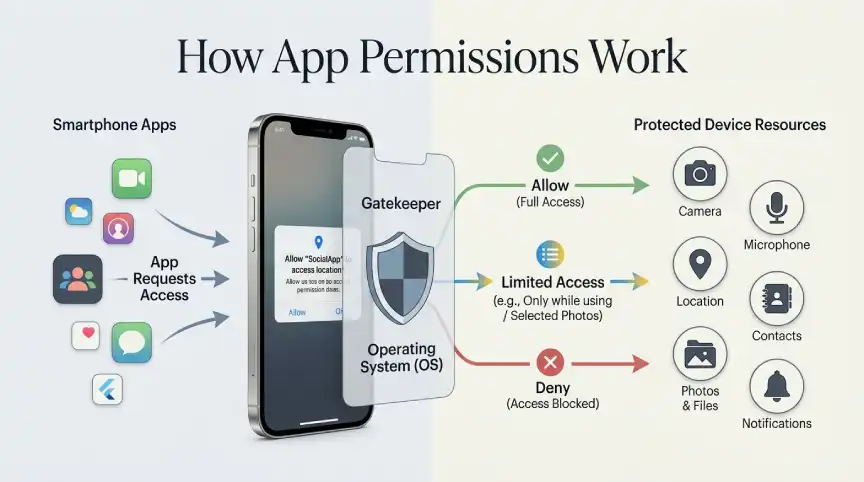
This system exists to stop apps from grabbing data silently in the background. Older versions of Android and iOS gave apps far more freedom to collect information without a clear prompt. Modern operating systems now require a visible request for nearly every sensitive category of data.
Permissions also come with different levels of persistence depending on the platform and the type of access. Some permissions stay granted until you manually change them in settings. Others, particularly location on newer iPhones, can be set to reset automatically after a period of inactivity.
Readers dealing with unwanted downloads may find this related. Our guide on blocking specific apps from being installed on an iPhone covers a similar layer of device control. It is aimed mostly at parents managing shared family devices.
Why Do Apps Actually Need These Permissions?
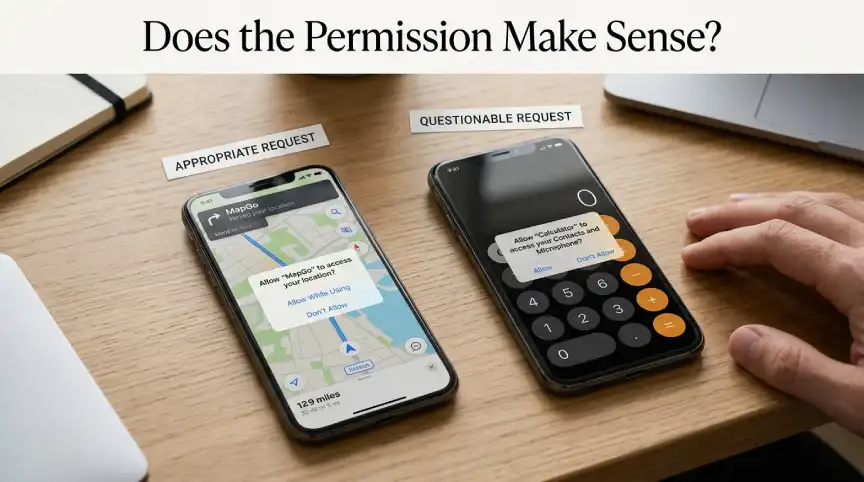
Plenty of permission requests make obvious sense. A camera app needs your camera, and a maps app needs your location. Those requests match the core purpose of the app itself.
Other requests are harder to justify at first glance. A flashlight app asking for your contacts list has no functional reason to need that data. If a permission request does not match the app’s purpose, pause before tapping allow.
The Most Common Permission Types, Explained
A handful of permission categories show up again and again across almost every app store listing. Knowing what each one actually unlocks makes future prompts far easier to judge.
Camera lets an app take photos or record video using your phone’s camera hardware. Social apps, scanning tools, and video chat apps all rely on this legitimately.
Microphone allows an app to record audio through your phone’s mic. Voice assistants, call apps, and voice memo tools need this to function at all.
Location shares your precise or approximate position with the app. Maps and weather apps use this constantly, while a puzzle game requesting it should raise questions.
Contacts gives an app access to the names, numbers, and emails saved on your phone. Messaging and social apps often request this to help you find friends already using the service.
Photos and files let an app view, save, or edit content stored on your device. This is common for editing tools, cloud backup apps, and messaging apps that let you send images.
Notifications are technically not a data permission but still control what an app can show you. Apps use this to send alerts even when you are not actively using them.
How to Check and Change Permissions on Android
Android groups all permission controls in one central location, making a full review fairly quick.
- Open Settings and tap Apps.
- Select the app you want to review.
- Tap Permissions to see everything it currently has access to.
- Tap any individual permission, then choose Allow, Deny, or Allow only while using the app.
Android also lets you flip this process around by permission type instead of by app. Under Settings > Privacy > Permission Manager, you can see every app with camera, location, or microphone access. That single screen is useful for spotting an app that quietly gained access months ago.
Newer Android versions add an extra safeguard for permissions you rarely use. If you have not opened an app in several months, Android may automatically reset its sensitive permissions. You will need to grant access again the next time you open that app.
How to Check and Change Permissions on iPhone
Apple keeps a similar structure, though the menu names and layout differ slightly from Android.
- Open Settings and scroll down to Privacy & Security.
- Tap a data type, such as Camera, Location Services, or Microphone.
- Review the list of apps currently granted access to that feature.
- Toggle any app off to revoke access immediately.
You can also review permissions from the opposite direction. Open Settings, scroll to a specific app, then view every permission it holds in one place. This approach works well for a full snapshot of a single app. It beats checking one permission type at a time.
iPhone adds a small indicator dot near the top of the screen for active camera or mic use. A green dot means the camera is in use, while an orange dot signals microphone access. If you see one appear unexpectedly, check which app triggered it right away.
Which Permissions Should You Actually Allow?
A simple test works for most situations: does this permission match the app’s core purpose? A ride-sharing app needs your location to function, so allowing it makes sense. A calculator app requesting the same permission does not pass that test.
“Allow only while using the app” is worth choosing whenever it appears as an option. This gives an app access when you actively need it, without letting it track you continuously in the background. Most location-based apps work perfectly fine under this restricted setting.
What Happens When You Deny a Permission?
Denying a permission almost never crashes the app entirely. Instead, the specific feature tied to that permission simply stops working. A camera app without camera access will only show an error when you try to take a photo.
Some apps display a follow-up prompt explaining why they need the permission and asking again. You can safely ignore these prompts if you have already decided the request is not necessary. Revoking access later, if you change your mind, takes the same few taps described above.
Permission Requests That Should Raise a Red Flag
A few patterns come up repeatedly among apps that misuse permissions. Recognizing them takes only a moment and can prevent a real privacy problem down the line.
A simple utility app, like a flashlight, calculator, or QR scanner, rarely needs contacts, microphone, or location access. If one of these apps asks for all three during setup, that mismatch is worth noting. Many free utility apps request broad access specifically to sell data to advertisers.
Games are another common source of unnecessary requests. A single-player puzzle game has no functional reason to read your contacts or track your precise location. Multiplayer games with voice chat are the main exception, since microphone access there genuinely supports gameplay.
Watch for permission requests that appear well after you have already been using an app for a while. A sudden new request, especially after an update, deserves the same scrutiny as the original install prompt. Reading the update notes can sometimes explain why the new request appeared.
Frequently Asked Questions
What are app permissions?
App permissions are specific types of access an app requests from your phone. Common examples include your camera, location, or contacts. You can grant or deny each one individually.
Why do apps need permissions?
Apps need permissions to use hardware or data tied to their core features. A camera app needing camera access is a clear example. Some apps request permissions unrelated to their actual function, which is worth questioning.
Which app permissions should I allow?
Allow permissions that clearly match what the app is designed to do. Be cautious with any request that seems unrelated to the app’s stated purpose.
How do I check app permissions on Android?
Go to Settings, tap Apps, select the app, and tap Permissions to see its current access. You can also review permissions by type under Privacy in Settings.
How do I control app permissions on iPhone?
Go to Settings, then Privacy & Security, and select a data type like Camera or Location Services. From there, you can toggle access off for any listed app.
Can I revoke a permission after granting it?
Yes, permissions can be changed at any time on both Android and iPhone. The app will simply lose access to that specific feature going forward.
Final Thoughts
App permissions exist to give you a say in what each app can actually see and use. A few minutes reviewing your most-used apps can reveal access you forgot you granted months ago. Treat any mismatched request, like a game asking for your contacts, as a reason to say no.





No Comment! Be the first one.