




LM Studio or Ollama? How to Run Free Local AI Models on Your Own PC in 2026
Both tools run AI models on your own computer for free. Learn which one wins on speed, models, coding, privacy, and ease of setup.
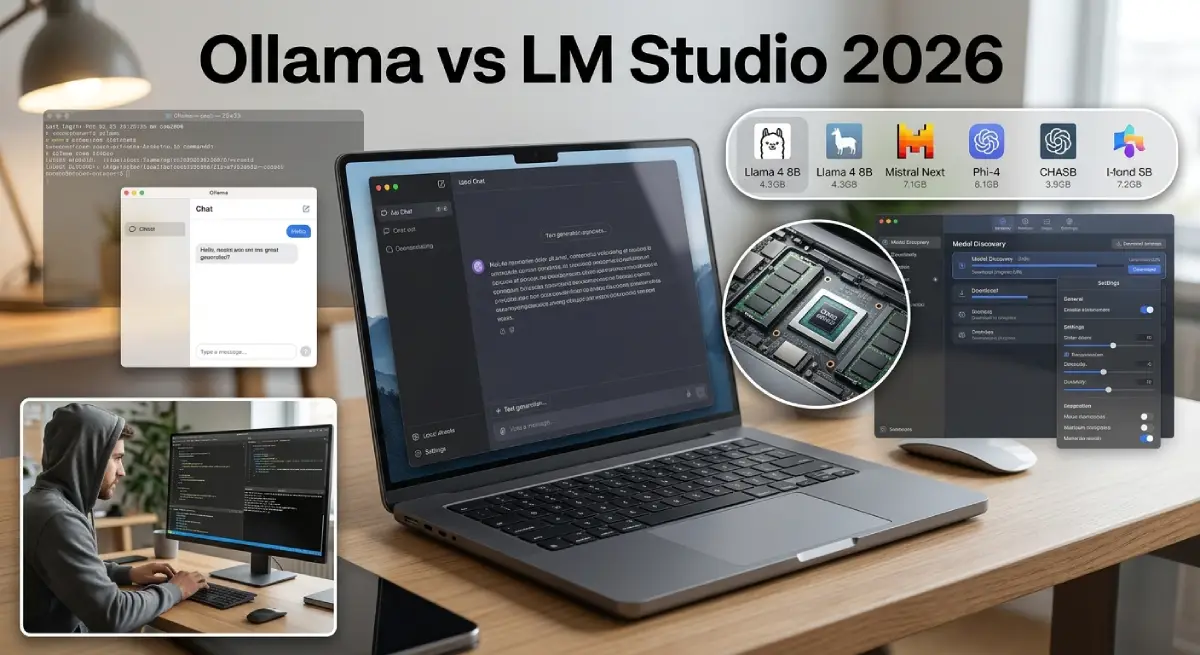
Running an AI model on your own laptop sounds hard. It is not. Two free tools make it simple, and most people must choose between them first. This guide to Ollama vs LM Studio shows which one fits you in 2026.
Table Of Content
- The Short Answer Before You Dive In
- What Ollama Offers Local AI Fans in 2026
- What LM Studio Brings to the Table
- Setting Up Each Tool Step by Step
- Ollama vs LM Studio on Speed and Hardware
- Best Local AI Models 2026 Has to Offer
- Privacy, Cost, and the Fine Print
- A Smart Workflow That Uses Both Tools
- Mistakes That Waste Your First Weekend
- When Neither Tool Is Enough
- Quick Answers Before You Install
- Stop Renting AI by the Token and Start Owning Your Setup
Both tools are private and work offline once you download a model. Both also changed a lot this year. Many old articles still call Ollama a terminal-only tool. That is no longer true, and the details matter.
Here you will find a fast verdict, a hardware guide, model picks, and a setup path. Everything comes from current release notes and recent speed reports. Nothing here relies on old tutorials.
The Short Answer Before You Dive In
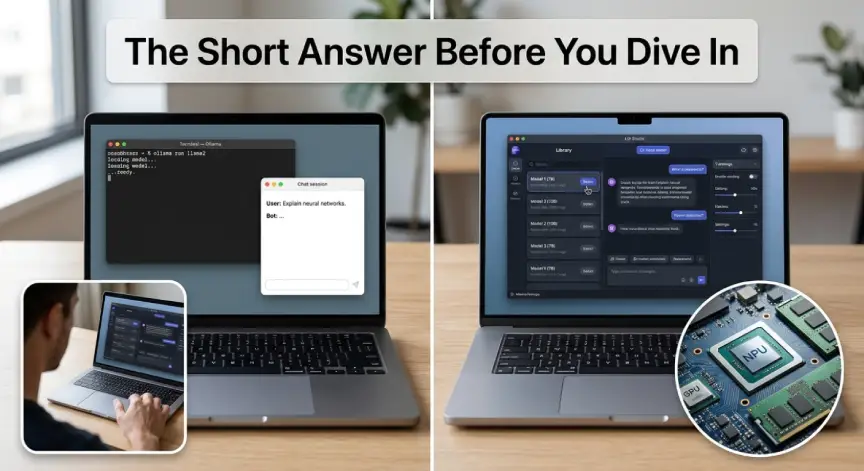
Pick Ollama if you build apps, run servers, or enjoy the terminal. Pick LM Studio if you want a visual app, easy model search, and sliders. Both run the same kinds of open-source LLM files. The Ollama vs LM Studio choice really comes down to how you like to work.
| Your situation | Better pick |
|---|---|
| You are brand new to local AI | LM Studio |
| You write code that calls a local API | Ollama |
| You own an Apple Silicon Mac | LM Studio, then test Ollama |
| You have only 8 GB of RAM | Ollama |
| You want a Docker or server setup | Ollama |
| You want to chat with your own documents | LM Studio |
Treat this table as a starting point. Your hardware and habits can change the answer. The sections below explain why each row looks the way it does.
What Ollama Offers Local AI Fans in 2026
Ollama is a small background service that downloads and runs models for you. You type one command, and a model starts answering. The core project uses the MIT license, so anyone can read and reuse the code. That openness is a big reason developers trust it.
Many older reviews miss that Ollama now has a desktop app for Windows and Mac. It supports chat, file drops, and image input. Linux users still rely on the command line, which most of them prefer anyway. On servers, Ollama runs as a system service or inside an official Docker image.
Ollama keeps a curated library of ready-to-run models, so pulling one is easy. The trade-off is a smaller catalog than Hugging Face. A brand new community fine-tune may not be there yet. You can still import GGUF files yourself.
Ollama also added hosted cloud models and paid plans in 2026. Local use stays free and unlimited. Cloud features send your prompts to remote servers. Turn them off with local-only mode if privacy is your goal.
What LM Studio Brings to the Table
LM Studio is a polished desktop app for finding, downloading, and chatting with models. You search Hugging Face from inside the app and click download. A chat window opens right away. No terminal is needed at any point.
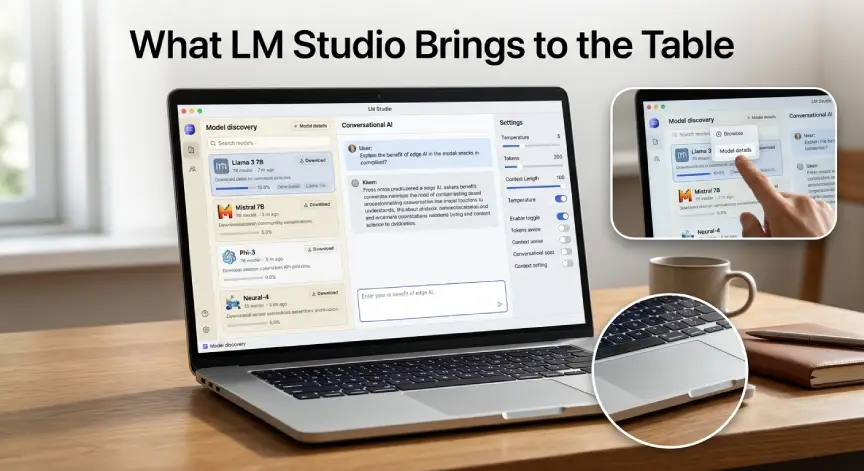
Its settings panel is where it shines. You can change context length, GPU offload, and cache options with sliders. Ollama hides many of these behind config files and environment variables. If you like to tweak and learn, this view teaches you a lot.
The app itself is closed source. The command line tool, SDKs, and MLX engine are open. It became free for work use in July 2025, and the terms cover internal business use. Large companies with special needs should still read the license.
LM Studio also grew past the desktop window. A headless mode called llmster arrived in January 2026. Its server can also speak the Anthropic message format, so Claude Code works with open models. MCP support lets your local model use outside tools.
Setting Up Each Tool Step by Step
Getting started takes about ten minutes with either app. The paths look different, though. Ollama feels like installing a utility, while LM Studio feels like installing a normal program.
For Ollama, download the installer from the official site. Linux users can run the install script instead. Then open a terminal and follow this short routine:
- Run the pull command with a model name to download it.
- Run the run command to start chatting.
- Run the list command to see what you have saved.
For LM Studio, install the app and open the Discover tab. Search for a model, pick a size that fits your memory, and press download. Load it, type a prompt, and you are chatting. To use it from code, switch on the local server and call it on port 1234.
Ollama vs LM Studio on Speed and Hardware
Speed depends on your chip, your memory, and the model size. On Windows and Linux with an Nvidia card, both tools can lean on llama.cpp. Results there are usually close. Do not expect one to crush the other.
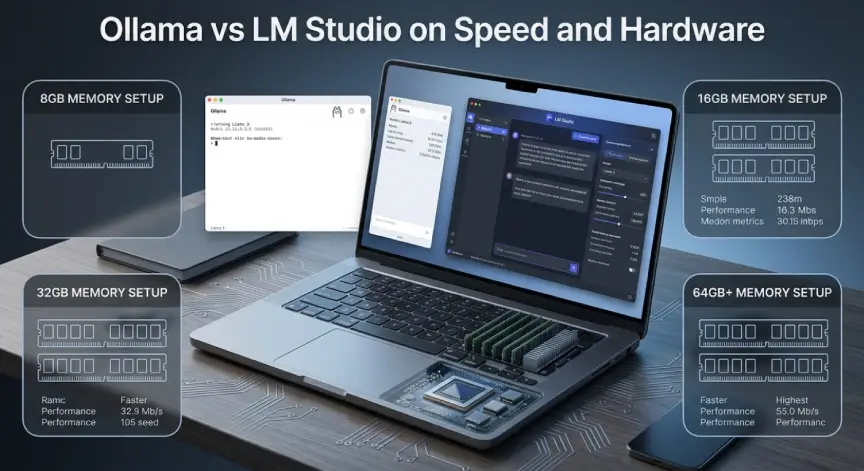
Apple Silicon tells a different story. LM Studio shipped an MLX engine early, and it gave big gains over llama.cpp. Ollama moved to MLX in March 2026 and closed much of the gap. One roundup puts the difference near 10 to 30 percent on most models.
LM Studio still tends to lead on very large models. Ollama has lower memory overhead, since LM Studio runs inside an Electron shell. On a laptop with 8 GB of RAM, a few hundred megabytes can matter. Ollama leaves more room for the model itself.
Here is a rough guide to model size. It assumes 4 bit quantized files. Exact needs vary by model.
- 8 GB of RAM: models around 3B to 4B parameters
- 16 GB of RAM: models around 7B to 8B parameters
- 32 GB of RAM: models from 14B up to about 32B
- 64 GB of RAM or more: 70B class models become possible, with patience
These numbers are estimates. Long context settings and other open apps also eat memory. Start smaller than you think you need, then move up.
Best Local AI Models 2026 Has to Offer
Both tools run the same big families. Llama models from Meta remain a safe starting point for general chat. Qwen, Gemma, and DeepSeek models are strong picks too, especially for reasoning and multilingual work. Check each catalog often, because new releases arrive fast.
For note-taking and writing help, a 7B or 8B model is plenty. Bigger models write better, but they also answer slower. A small model that replies in two seconds often beats a big one that takes twenty. Match the model to the job, not to the hype.
Quantization is what lets big models fit on small machines. A 4 bit file keeps most of the quality at about a quarter of the size. Both tools let you pick the level. Higher levels cost more memory for small gains.
Ollama Coding Models Worth Trying
Ollama coding models from the Qwen Coder and DeepSeek Coder families work well. They handle autocomplete and code review nicely. Editor plugins such as Continue can point straight at Ollama’s local port. The fixed address of 11434 makes setup predictable.
LM Studio serves coding models too, on port 1234. Its sliders help when a coder model runs out of memory. Try a small coder model first. Move to a larger one only if the answers feel thin.
Privacy, Cost, and the Fine Print
Local models keep your prompts on your own machine. That is the main reason people leave cloud chatbots. With either tool, you can run an LLM locally free of charge. Your only cost is electricity and the hardware you already own.
In the Ollama vs LM Studio privacy picture, both have optional features that touch the network. Ollama’s cloud features send data to remote servers. LM Studio’s device link feature routes traffic across a private network. Switch both off if you want a fully offline AI setup.
Open code also changes trust. Anyone can audit Ollama’s code. LM Studio’s app code is closed, so you rely on the company’s word. Most home users will not care, but security teams in strict settings might.
A Smart Workflow That Uses Both Tools
The smartest Ollama vs LM Studio move is not choosing at all. Many developers browse in LM Studio and deploy with Ollama. The first is great for trying models. The second is great for serving them in the background.
- Open LM Studio and test two or three models on a real task from your day.
- Note which one gives the best answers at a speed you can live with.
- Pull the same model into Ollama with a single pull command.
- Point your editor or app at Ollama’s local address.
Both tools store their own model copies, so watch your disk space. A few large models can fill a small drive fast. Delete the ones you no longer use.
Mistakes That Waste Your First Weekend
Most Ollama vs LM Studio complaints online trace back to a few simple errors. The first mistake is choosing a model too big for your memory. The computer then swaps to disk and crawls. Beginners blame the tool, but the model size is the real cause.
The second mistake is ignoring context length. A long context uses a lot of memory. Raise it only when a task truly needs it.
The third mistake is trusting old tutorials. Menus and settings changed a lot in 2026. Always check the release notes for the version you installed.
When Neither Tool Is Enough
Some jobs outgrow both apps. If you must serve many users at once on several GPUs, look at vLLM. If you want raw speed and full control, look at llama.cpp itself. These tools take more skill, so most readers should skip them for now.
Quick Answers Before You Install
Can I run both tools at the same time?
Yes. They use different ports, so they will not clash. They do share your memory and GPU, so load only one big model at a time.
Which one is better for chatting with my own files?
LM Studio has built-in document chat. Ollama can do it too, but deeper setups usually need extra integrations.
Do I need a graphics card?
No. Both tools can run small models on a CPU. Replies come slower, but simple tasks still work fine.
Is a private AI chatbot at home really as good as the cloud?
Not for every task. Small local models trail the biggest cloud models on hard reasoning. For drafting, summaries, and code help, they are often good enough.
Stop Renting AI by the Token and Start Owning Your Setup
The Ollama vs LM Studio debate ends the moment you try one yourself. Pick one tool tonight and install it. Download a small model first so the test is quick. Ask it to summarize an article you know well, and you will judge it fast.
If you hit a wall, add the second tool next weekend. Local AI rewards people who experiment. Your laptop is more capable than you think.




No Comment! Be the first one.