



How to Block Apps From Being Downloaded on Your iPhone: A Complete 2026 Guide
Worried about unwanted app downloads on your child's iPhone or your own device? This guide shows you exactly how to block apps from being downloaded on iPhone using built in Apple tools. You will...
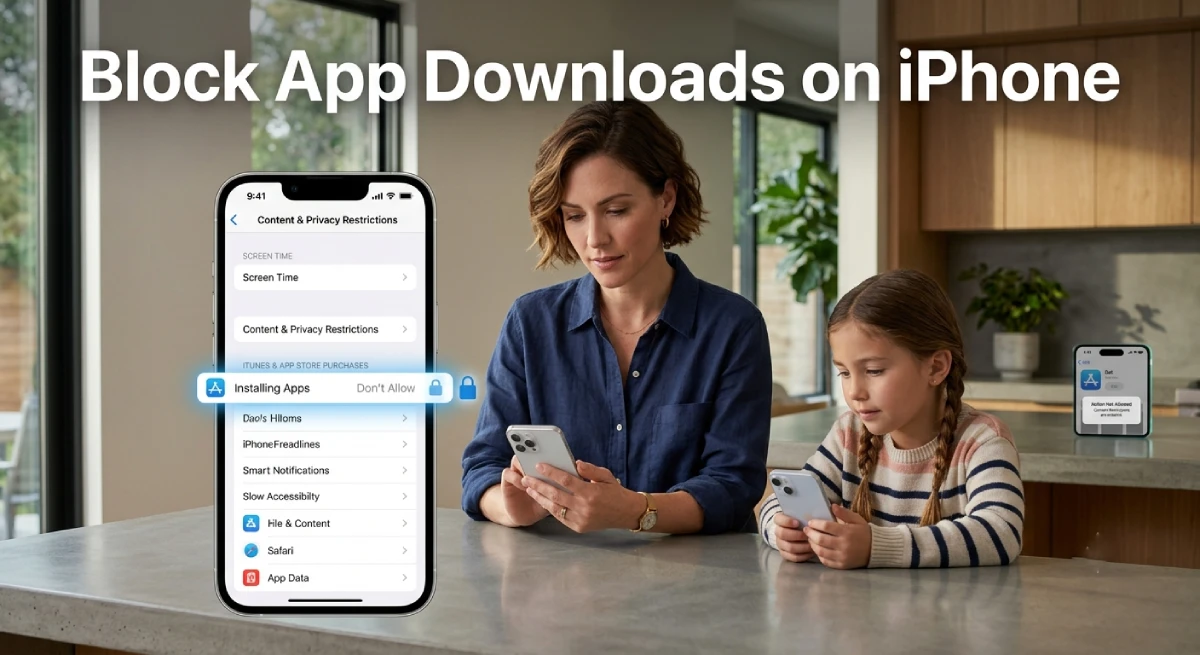
Every parent knows the feeling. You hand your kid an iPhone for homework help. An hour later, three new games appear on the home screen. Learning how to block apps from being downloaded on iPhone can solve this problem fast.
Table Of Content
- Why You Might Need to Block App Downloads on iPhone
- Method 1: Use Screen Time to Block App Installs
- Method 2: Use Ask to Buy Instead of Full Blocking
- Method 3: Use Supervised Mode for the Strongest Control
- Comparison Table: Screen Time vs Ask to Buy vs Supervised Mode
- How to Remove Apps That Are Already Installed
- Common Problems and How to Fix Them
- Common Mistakes Parents Make When Blocking Apps
- Frequently Asked Questions
- Final Thoughts
Apple does not offer one single switch for this. Instead, it gives you a few tools that work together. Screen Time, Ask to Buy, and Supervised Mode each play a role. This guide walks you through every method in plain language.
You will also learn why some fixes fail and how kids get around them. By the end, you will have a setup that actually holds up. No tech background needed.
In 2026, more families share devices than ever before. Kids get their first iPhone earlier, often before age ten. That makes app download control a bigger priority for many households today.
This guide covers every official Apple method available right now. We also explain the small details Apple support pages often skip. You will finish this article ready to set up your iPhone in minutes.
Why You Might Need to Block App Downloads on iPhone
Unwanted app downloads are not just annoying. Some apps expose kids to inappropriate content or strangers. Others quietly drain data or rack up in app purchases.
Parents are not the only ones who need this. Adults use these same steps to fight their own distraction habits. Blocking new downloads removes the temptation to install another game during a work break.
Small businesses also lock down shared devices this way. A store iPad or reception phone should only run approved apps. The methods below work for any of these situations.
Screen time studies from 2026 show something interesting. Kids with unrestricted download access spend far more time on their phones daily. Fewer download options often lead to healthier overall phone habits.
There is also a financial reason many parents overlook. Some free apps push aggressive in-app purchases toward young users. Blocking new downloads removes this risk before it ever becomes a problem.
Method 1: Use Screen Time to Block App Installs
Screen Time is the fastest way to stop new downloads. It lives inside your iPhone settings and takes about two minutes to set up.
Steps to Turn Off App Installs
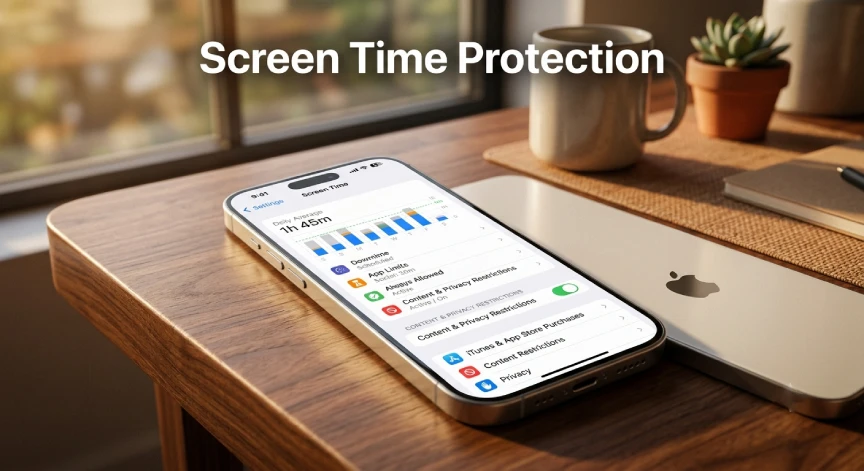
Open Settings and tap Screen Time. Turn on Content and Privacy Restrictions if it is not already active. Tap iTunes and App Store Purchases, then tap Installing Apps. Select Don’t Allow and confirm with your Screen Time passcode.
This removes the App Store icon completely from the home screen. No apps can be installed until you switch the setting back. Existing apps still work and can still receive updates.
Setting Up Screen Time on a Child’s Device
If the iPhone belongs to your child, use Family Sharing first. Add their device under your Apple ID in Settings. This lets you manage their Screen Time remotely from your own phone.
Once linked, follow the same steps under their profile instead. You can also require your approval for every download request. This works even when you are not standing next to them.
Blocking Apps by Age Rating Instead of Fully Blocking
Some parents prefer a lighter touch than a full App Store block. Content restrictions let you filter apps by age rating instead. This still allows browsing while hiding mature content automatically.
Go to Content and Privacy Restrictions, then tap Content Restrictions. Tap Apps and choose an age limit like 9+ or 12+. Anything rated higher will not appear in search results anymore.
Apple updated its rating categories in 2026 to close old gaps. The current tiers are 4+, 9+, 13+, 16+, and 18+. This gives parents much finer control than the old system offered.
Method 2: Use Ask to Buy Instead of Full Blocking
Some families do not want to block the App Store entirely. Ask to Buy offers a middle ground that many parents prefer.
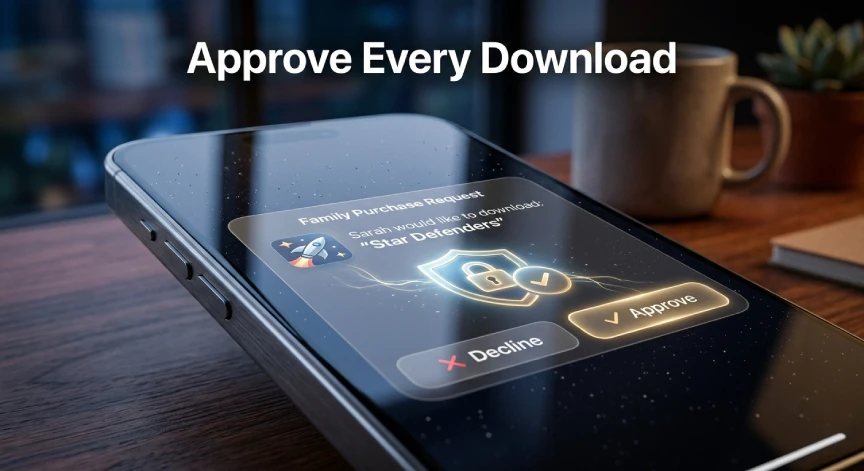
With this setting on, your child can still browse the App Store freely. Every download request sends a notification straight to your device. You approve or deny it before anything installs.
How to Turn On Ask to Buy
Open Settings and tap your name at the top. Tap Family Sharing, then select your child’s name. Tap Ask to Buy and switch it on.
This method keeps communication open between you and your child. It also teaches them to think before requesting a new app. Many families find this less restrictive than a full download block.
Ask to Buy also applies to purchases and in-app content. That includes paid apps, subscriptions, and in-app purchases inside free games. Nothing gets charged without your direct approval first.
One limitation is worth noting for older kids. Family Sharing settings for Ask to Buy automatically end at age thirteen for some regions. Check your region’s exact age cutoff inside Apple’s Family Sharing settings.
Method 3: Use Supervised Mode for the Strongest Control
Supervised Mode gives you the most reliable way to block apps from being downloaded on iPhone. It requires a computer and a bit more setup time. The payoff is a lock that is much harder to bypass.

Supervised Mode was originally built for schools and businesses managing many devices at once. Parents have started using it at home for the same reliability. Unlike standard Screen Time, adults cannot easily undo these restrictions.
How Supervised Mode Differs From Standard Screen Time
Standard Screen Time can be turned off if someone knows the passcode. Supervised Mode locks settings at a deeper system level. This makes it far harder to disable through simple guessing.
You will need to erase the iPhone and set it up fresh. During setup, you configure it through Apple Configurator or a mobile device management tool. This extra step is worth it for families needing dependable control.
Who Should Actually Use Supervised Mode
Supervised Mode fits families with repeated bypass problems. If your child keeps finding workarounds, this method closes most of them. Schools managing dozens of shared iPads also rely on it daily.
Casual users rarely need this level of control. Standard Screen Time works fine for most everyday households. Save Supervised Mode for situations where lighter tools keep failing.
Comparison Table: Screen Time vs Ask to Buy vs Supervised Mode
| Method | Setup Time | Blocks New Downloads | Can Adult Bypass It | Best For |
|---|---|---|---|---|
| Screen Time | 2 minutes | Yes, fully | Yes, with passcode | Quick everyday control |
| Ask to Buy | 3 minutes | No, requires approval | Yes, if account shared | Open communication with kids |
| Supervised Mode | 30 to 60 minutes | Yes, fully | No, much harder | Strict, long-term control |
How to Remove Apps That Are Already Installed
Blocking new downloads will not remove apps already on the phone. You still need to delete unwanted apps manually. Press and hold the app icon until a menu appears, then tap Remove App.
For apps you never want reinstalled, block the App Store first. Then delete the apps one by one from the home screen. Since installing is turned off, they cannot be added back.
You can also hide built-in apps without deleting them. Under Allowed Apps and Features, toggle off apps like Safari or Camera. The app stays installed but disappears from the home screen entirely.
This approach works well for apps you might need again later. Turning the toggle back on instantly restores the hidden app. No reinstall or setup is required when you change your mind.
Common Problems and How to Fix Them
Screen Time restrictions sometimes fail without warning. Knowing these issues in advance saves a lot of frustration later.
The One More Minute Trick
Kids have found a bypass using the One More Minute button. Tapping it repeatedly on different locked apps can disable limits entirely. Apple has patched parts of this, but some devices still show the issue.
To reduce this risk, pair App Limits with Content and Privacy Restrictions. Blocking the App Store directly is more reliable than time limits alone. Combine both methods for stronger protection.
Screen Time Permissions Getting Disabled
Some parental control apps rely on Screen Time permissions to function. In earlier iOS versions, these permissions could be switched off easily. Newer iOS updates require a passcode or Face ID to change them.
Keep your iPhone updated to the latest iOS version. Apple regularly patches these loopholes after they become public. An outdated phone is much easier to work around.
Common Mistakes Parents Make When Blocking Apps
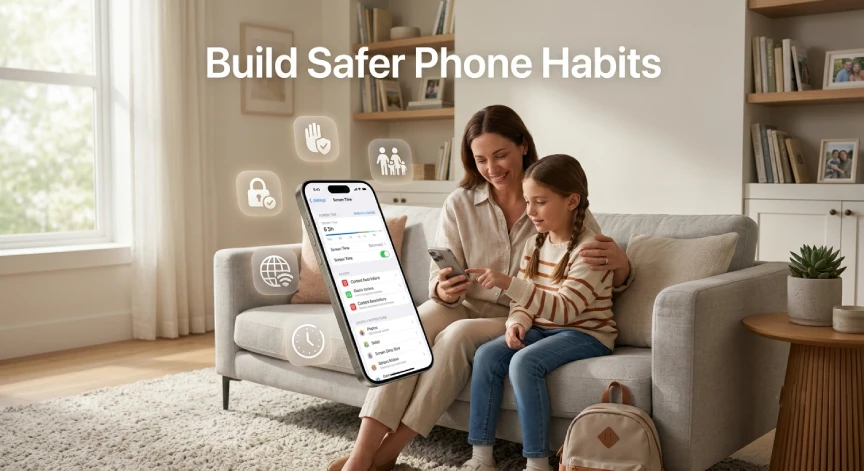
Many parents set restrictions once and never check again. Kids often find gaps within a few weeks of testing. Review your settings monthly to catch anything that changed unexpectedly.
Using an easy-to-guess passcode is another common error. Birthdays and simple number patterns are the first things kids try. Choose a passcode that has no obvious connection to your family.
Sharing your Apple ID password with your child undoes most restrictions. They can simply sign in and change settings themselves. Keep your Apple ID credentials completely separate from theirs.
Frequently Asked Questions
Can I block just one specific app from being downloaded?
Not directly by name. Apple lets you block app installs by age rating instead. Set the rating low enough and higher rated apps will not appear for download.
Will blocking app downloads stop app updates too?
Yes, if you use standard Screen Time restrictions. Turning off Installing Apps also blocks updates to existing apps. Supervised Mode allows more fine tuned control over this tradeoff.
Can my child bypass Screen Time if they know my Apple ID?
Yes, if they know your Screen Time passcode or Apple ID password. Always use a passcode that differs from your iPhone unlock code. Consider a separate Apple ID for managing restrictions.
Does this work on both iPhone and iPad?
Yes, all these methods work the same way on iPad. Screen Time, Ask to Buy, and Supervised Mode are built into iPadOS too. The setup steps are nearly identical across both devices.
How do I block apps from being downloaded on my own iPhone?
Follow the same Screen Time steps used for children. Set your own Screen Time passcode different from your unlock code. Ask a trusted friend to hold the passcode for extra accountability.
What happens to apps already downloaded before I set restrictions?
Existing apps stay on the phone after you turn on restrictions. They will not be removed automatically by any of these settings. You must delete unwanted apps manually using the steps above.
Final Thoughts
Learning how to block apps from being downloaded on iPhone takes a bit of setup. The reward is peace of mind and fewer surprise downloads. Start with Screen Time for a quick fix today.
For long-term control, consider moving to Supervised Mode later. Combine your chosen method with regular check-ins with your child. Technology works best alongside real conversation about safe device use.
No single setting solves this problem forever. Kids grow, apps change, and Apple updates its tools regularly. Revisit your settings every few months to stay ahead of new tricks.
The goal is not to control every moment of screen time. It is to build safer habits that last well beyond childhood. Start today with one method, then adjust as your family’s needs change.





No Comment! Be the first one.