





Steam Deck Storage Explained: How Much Space You Really Need and What to Buy
Not sure whether 512GB is enough for your Steam Deck? This guide covers every storage option, real game sizes, and how to add a microSD card, so you can pick the right size once and finally stop...
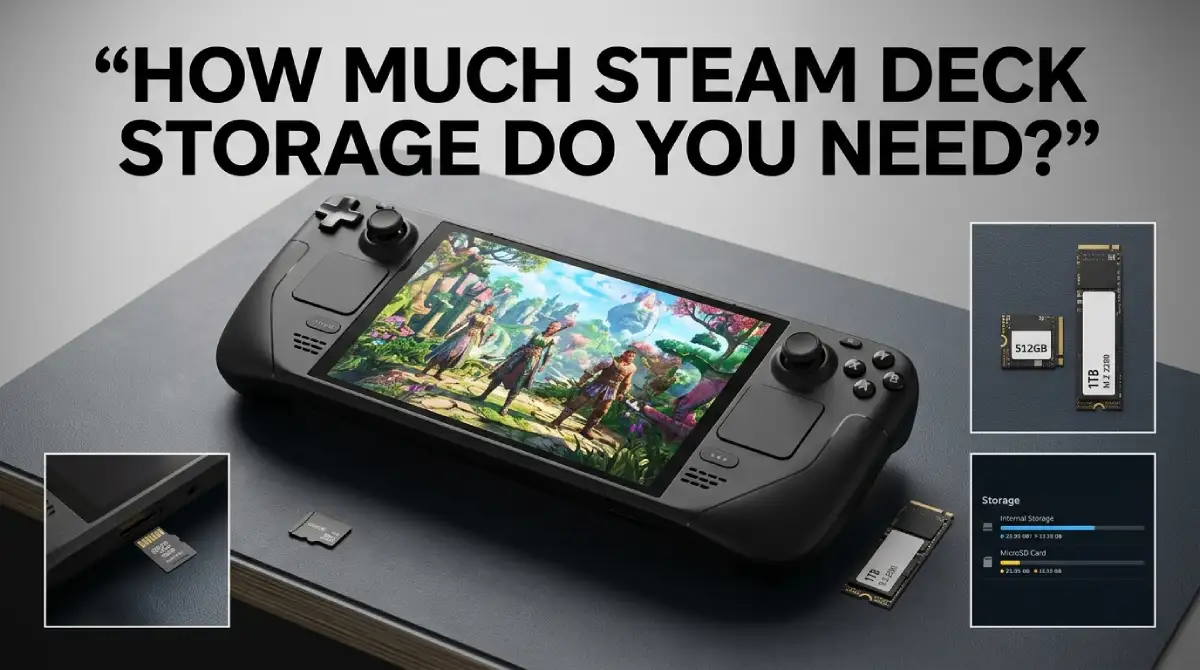
Steam Deck storage comes down to one question: how big are the games you actually play? For most people, 512GB is a comfortable starting point, and a microSD card can stretch it later. Play mostly indies, and you’ll manage with less, but 100GB blockbusters call for 1TB or some regular uninstalling.
Table Of Content
- Steam Deck Storage Options at a Glance
- How Big Are Steam Deck Games, Really?
- A Little Math Before You Buy
- So How Much Steam Deck Storage Do You Need?
- How to Expand Steam Deck Storage With a microSD Card
- How Big Should the microSD Card Be?
- Moving Games Between the SSD and the Card
- Should You Replace the Internal SSD?
- Non-Steam Games Need Room Too
- How to Check What You Have Left
- Mistakes People Make With Steam Deck Storage
- Habits That Keep Storage Free
- Frequently Asked Questions
- Pick Your Size, Then Stop Worrying About It
Choosing a handheld is confusing enough already. Still deciding between devices? Our Steam Deck OLED vs ROG Ally X comparison covers the bigger picture. This guide stays on storage: what each model offers, how large games get, and how to add space without drama.
Steam Deck Storage Options at a Glance
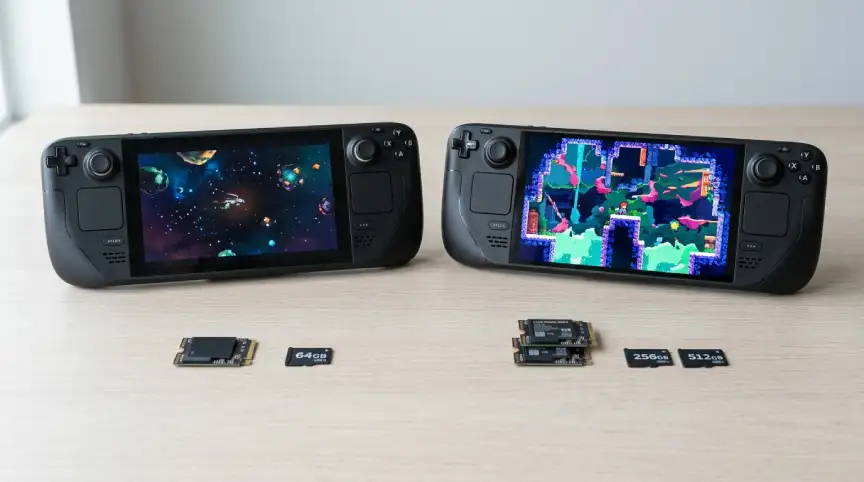
The lineup changed recently, so here’s where things stand.
| Model | Internal storage | Type | Status |
|---|---|---|---|
| Steam Deck LCD | 64GB | eMMC | Discontinued |
| Steam Deck LCD | 256GB | NVMe SSD | Discontinued |
| Steam Deck LCD | 512GB | NVMe SSD | Discontinued |
| Steam Deck OLED | 512GB | NVMe SSD | Current model |
| Steam Deck OLED | 1TB | NVMe SSD | Current model |
Every model has a microSD slot. According to Wikipedia’s Steam Deck page, Valve discontinued the LCD version on December 19, 2025. You’ll mostly find those secondhand now.
If you do buy a used one, ask which storage tier it has. The 64GB LCD uses eMMC, which is slower than the NVMe drives in the other models. That gap matters less than capacity, but it’s still the weakest option.
How Big Are Steam Deck Games, Really?
It swings wildly. Small indie games can take a few gigabytes. Big modern releases are another story.
Baldur’s Gate 3 lists 150GB on its Steam page. Cyberpunk 2077 lists 70GB. Two games the size of Baldur’s Gate 3 would swallow 300GB of a 512GB drive. And that’s before the system files and everything else you’ve installed.
Updates can bite too. Some players report that large patches need extra free space while they install. So filling the drive to the last gigabyte is a bad plan. Leave yourself some headroom.
A Little Math Before You Buy
Numbers make this less abstract. A 150GB game takes up roughly 29% of a 512GB drive. On a 1TB drive, the same game takes about 15%. A 70GB game takes about 14% of a 512GB.
Stack three or four of those, and the drive feels small fast. Remember that the listed capacity isn’t what you can actually use. The system, Steam, and any non-game files take a bite before you install anything. So treat 512GB as a bit less in real life.
It also helps to count what you’d realistically keep installed at once. Not your whole library. Just the games you’d launch this month. That short list is the number to compare against the drive size.
So How Much Steam Deck Storage Do You Need?
There’s no magic number. Here’s how I’d think about it, though.
If you mostly play indies, older titles, and a few mid-sized games, 512GB is plenty. If you rotate through several huge games at once, 1TB gives you room to breathe. And if you only play one big game at a time, 512GB plus a card works fine.
At 70GB per game, the math says about seven fit on 512GB. In practice it’s fewer, because the system takes its share.
Be honest about your habits. Do you finish games and move on, or keep ten things half-played? The second type of player fills drives faster. Pick the size that matches how you really behave, not how you hope to.
How to Expand Steam Deck Storage With a microSD Card
The card slot sits on the bottom edge of the device. Any card you use has to be formatted on the Deck first. Here’s the usual route:
- Slide the microSD card into the slot until it’s flush.
- Press the Steam button, open Settings, then System.
- Choose Format SD Card and confirm. This erases everything on the card.
- Open Settings, then Storage, and set the card as the default if you want new games installed there.
Valve lists UHS-I microSD support. Faster cards still work, but they don’t gain extra speed on the Deck. So there’s no point paying a premium for the fastest rating. For more detail, see Tom’s Guide’s walkthrough on formatting an SD card.
How Big Should the microSD Card Be?
Match it to the games you’d keep installed, not your whole library. A 512GB card holds about three 150GB games, or a pile of smaller ones. Players report using 1TB cards successfully, so you aren’t stuck with small sizes.
Bigger doesn’t mean faster, though. The slot supports UHS-I speeds, as covered above. A larger card just holds more. If you’re torn, buy the largest size you’re comfortable paying for, since you can always keep it as a backup library later.
Moving Games Between the SSD and the Card
Already filled the internal drive? You don’t need to reinstall anything. Right-click the game, open Properties, pick Installed Files, and choose Move Install Folder. You can also manage this from Settings, then Storage.
One quirk is worth knowing. A few players report that shader caches and Proton data stay on the internal drive, even when the game lives on the card. So the internal storage never fully empties. Keep that in mind if your setup is tight.
Should You Replace the Internal SSD?
You can. It means opening the Deck and swapping the drive. Dexerto’s formatting guide notes that if you’re not confident doing that, a microSD card is the simpler path. I’d start there.
A card is cheaper, reversible, and takes about two minutes. Opening the case is a bigger commitment. Save that for when you truly outgrow the card route.
Non-Steam Games Need Room Too
Games from Epic and GOG take space like anything else. If you add them through Heroic, count them in your budget from day one. Our guide on how to install non-Steam games on Steam Deck walks through the setup. Just don’t forget those downloads share the same drive as your Steam library.
How to Check What You Have Left
Open Settings, then Storage. You’ll see the internal drive and any card you’ve inserted, listed separately. It’s the quickest way to spot a drive that’s nearly full. Make it a habit before you buy or download something large.
Mistakes People Make With Steam Deck Storage
Skipping the formatting step is the classic one. The Deck needs to format the card itself, and that wipes whatever was on it. Back up any photos or files first, since the confirmation prompt is easy to tap through.
Another mistake is overspending on a super-fast card. The slot supports UHS-I, so faster ratings won’t buy you speed. Spend that money on capacity instead.
Then there’s the full drive problem. Running a drive close to empty invites failed updates and general headaches. Keep a cushion of free space, even if it feels wasteful. Finally, if you buy a used LCD, double-check which storage tier you’re getting before you pay.
Habits That Keep Storage Free
Uninstalling a Steam game doesn’t remove it from your library. You can download it again whenever you like. That makes cleanup less scary than it sounds.
Delete finished games you won’t replay soon. Keep your current favorites on the fast internal drive. Put big, occasional games on the card. Then check your Storage screen once a month, before it turns into an emergency.
Frequently Asked Questions
How much storage does a Steam Deck need?
For most people, 512GB is a comfortable starting point. Heavy AAA players may prefer 1TB or a microSD card.
Can you expand Steam Deck storage?
Yes. Every model has a microSD slot, and you format the card on the Deck itself.
What microSD card works with Steam Deck?
Valve lists UHS-I support. Faster cards work, but they don’t run faster on the Deck.
Can I move games to the SD card later?
Yes. Open the game’s Properties, go to Installed Files, and choose Move Install Folder.
Is the Steam Deck LCD still sold?
Valve discontinued it in December 2025. You’ll mostly find it used.
Pick Your Size, Then Stop Worrying About It
Steam Deck storage isn’t a trick question. Match the size to the games you play and add a card if you need more. Leave some free space for updates. That’s really all there is to it.
Want more handheld guides like this? Browse the Gaming category.




No Comment! Be the first one.