




How to Stop Apps Running in the Background on Android the Right Way
Not every background app is a battery drain, but some genuinely are. This guide shows you how to stop apps running in background on Android without accidentally silencing the ones you rely on for...
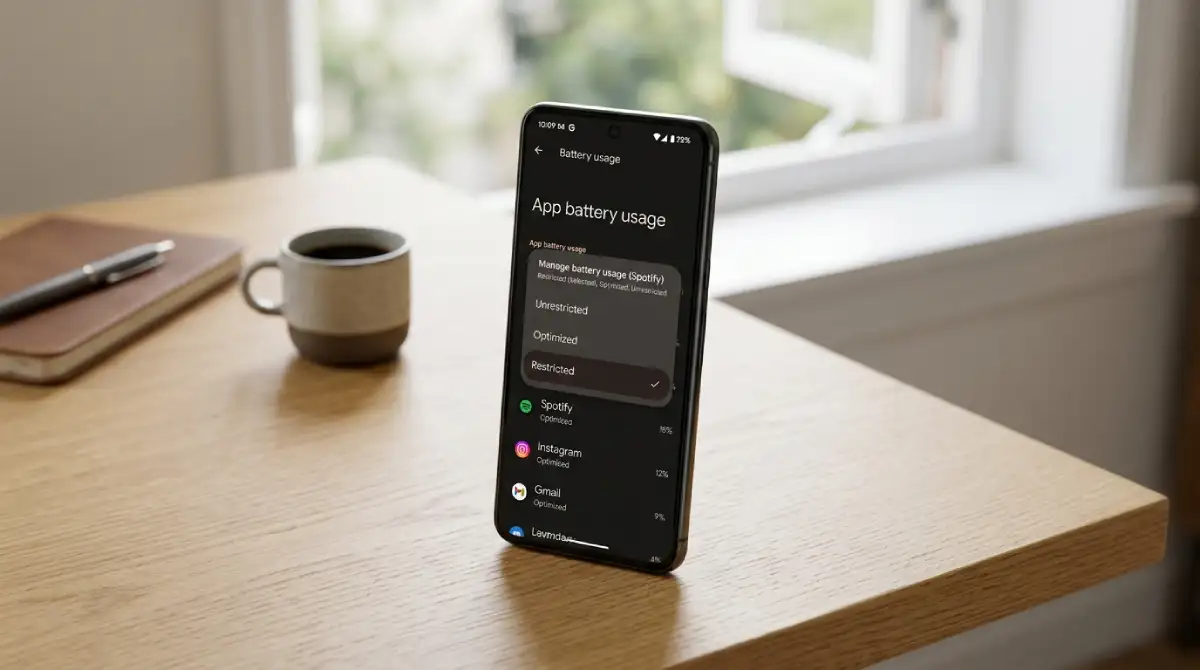
To stop apps running in background in Android settings, go to Settings, then Apps. Select the app, then set Battery to Restricted. You can also let Android handle it automatically through the Unused Apps feature. This pauses activity for anything you have not opened in months. Not every app should be restricted, since some rely on background access for notifications you actually want.
Table Of Content
- Stop Apps Running in Background Android: The Quick Steps
- Why Apps Run in the Background in the First Place
- Background Activity Is Not Automatically Bad
- How to Check Which Apps Are Using Background Battery
- How to Restrict Background Activity for a Specific App
- Let Android Handle Unused Apps Automatically
- Manufacturer Battery Managers Add Extra Restrictions
- When You Should Not Restrict a Background App
- Background Data Versus Background Battery Use
- How This Differs From iPhone’s Background App Refresh
- Frequently Asked Questions
- Final Thoughts
We already covered what app permissions control on your phone in a separate guide. Background activity is a related but different setting, focused on battery and data rather than hardware access. Here is how the two connect, and how to manage background apps without breaking the ones you need.
Stop Apps Running in Background Android: The Quick Steps
If you just want the fast version, here it is:
- Open Settings > Apps and select the app causing problems.
- Tap Battery and choose Restricted.
- Turn on Unused Apps under Settings > Apps for automatic cleanup.
- Check your battery usage list weekly to catch new offenders early.
For official details straight from Google, see the Manage Unused Apps support page. The sections below explain the reasoning behind each step in more depth.
Why Apps Run in the Background in the First Place
Messaging apps stay active in the background so a new message can trigger an instant notification. Fitness apps track your steps continuously, even when the screen is off. Weather apps refresh conditions periodically so the forecast stays current when you open them.
Background sync also keeps cloud storage and email apps up to date without you opening them first. This is what makes a new email appear instantly instead of only after you check manually. Removing this entirely would make plenty of apps feel broken or slow.
This behavior is not inherently a problem. It becomes one when an app you rarely open keeps running anyway. That kind of activity drains battery for little real benefit. The goal is restricting that second category, not eliminating background activity everywhere.
Background Activity Is Not Automatically Bad
A common piece of advice says to force-close every app to save battery. Android’s own memory management already handles this more efficiently than manual closing does. Modern Android versions decide which apps to keep in memory based on actual usage patterns.
Aggressively closing apps can sometimes hurt battery life instead of helping it. Reopening a fully closed app from scratch uses more power than resuming a paused one. Android’s system is already tuned to make these trade-offs for you in most cases.
The better strategy targets specific problem apps rather than closing everything constantly. Think of it as pruning a few overgrown branches, not clearing the whole garden. That distinction is the difference between actually saving battery and just adding friction to your day.
How to Check Which Apps Are Using Background Battery
Open Settings, then Battery, then look for a battery usage breakdown by app. Android lists apps by how much battery they have consumed recently, including background use specifically. This view quickly reveals which apps are worth investigating further.
An app consuming a large share of battery while rarely opened is worth investigating. Compare that against how often you actually use the app day to day. A messaging app high on the list is expected. An unused game high on that same list is not.
How to Restrict Background Activity for a Specific App
Restricting background activity takes just a few taps once you know the path.
- Open Settings and tap Apps.
- Select the app you want to restrict.
- Tap Battery, then choose Restricted.
- Confirm the change when prompted.
Restricted apps can still run when you actively open them. They simply lose the ability to run freely in the background between sessions. Choosing Optimized instead applies Android’s default balanced behavior, which works well for most apps.
Let Android Handle Unused Apps Automatically
Android includes a built-in feature for apps you rarely open, found under Settings > Apps > Unused Apps. Turning this on lets the system automatically pause activity for neglected apps. It also revokes runtime permissions and stops notifications after roughly ninety days of inactivity.
This feature works as a good default for most people. It targets genuinely neglected apps rather than ones you use daily. You can exclude specific apps from this behavior individually if needed.
Look for a Pause App Activity if Unused toggle inside that app’s own settings page. Turning this off keeps the app active even if you stop opening it. This is worth doing for apps you use rarely but still depend on, like a banking app.
Manufacturer Battery Managers Add Extra Restrictions
Samsung, Xiaomi, and other manufacturers layer their own battery management on top of standard Android. Samsung’s battery settings include a Background Usage Limits menu with options like putting unused apps to sleep. Xiaomi’s MIUI and HyperOS require enabling Autostart for some apps just to receive notifications reliably.
These manufacturer restrictions sometimes reset after a software update or a full reboot. If notifications suddenly stop working after an update, check these brand-specific battery settings again first. Community resources like dontkillmyapp.com track these quirks by manufacturer if you need model-specific steps.
When You Should Not Restrict a Background App
Messaging and calling apps generally need background access to deliver notifications instantly. Restricting these can cause delayed messages or missed calls, which usually outweighs any battery savings. The same applies to any app tracking something continuously, like a fitness tracker or a sleep monitor.
A good rule of thumb: restrict apps you barely use. Leave the ones you depend on daily alone. If restricting an app causes a feature to break, simply switch it back to Optimized. Nothing about this process is permanent or risky to your phone.
Background Data Versus Background Battery Use
Android separates two related settings that people often confuse. Background battery restrictions control whether an app can run processes when it’s not in use. Background data restrictions control whether that same app can use your internet connection at all.
You can find background data controls under the same app-specific settings page as battery. Restricting background data is a smart move on limited mobile plans, even for apps you use often. It stops an app from syncing over cellular data while leaving its background activity otherwise intact.
Combining both restrictions gives you the most control for genuinely unused apps. For apps you actually rely on, adjusting just one setting is usually enough. Test one change at a time so you can tell which setting actually fixed your issue.
How This Differs From iPhone’s Background App Refresh
iPhone uses a single toggle called Background App Refresh, found under Settings and General. It is a simpler system than Android’s separate battery and data controls. Turning it off for an app stops most background updates in one step.
Android’s more granular approach takes a bit more setup but offers finer control. You can restrict battery use while still allowing background data, or the reverse. That flexibility matters more for power users managing several problem apps at once.
Neither approach is strictly better for every person. iPhone’s simplicity suits someone who wants a quick fix. Android’s granular settings suit someone willing to spend a few extra minutes for more precise control.
Frequently Asked Questions
How do I stop apps running in the background?
Go to Settings, tap Apps, select the app, then set Battery to Restricted. Android’s Unused Apps feature can also handle this automatically for neglected apps.
Why are apps running in the background?
Apps run in the background to deliver notifications, sync data, or track ongoing activity like fitness or location. Some of this is genuinely useful, while some is simply wasteful.
Do background apps drain battery?
Some do, especially apps rarely opened that still sync or refresh constantly. Checking your battery usage breakdown quickly reveals which specific apps are responsible.
Should I stop background apps on Android?
Only for apps you rarely use or do not need instant notifications from. Restricting apps you depend on daily can cause missed alerts or delayed messages.
How do I restrict background activity?
Open Settings, tap Apps, select the app, then change its Battery setting to Restricted. You can switch it back to Optimized anytime without any lasting effect.
Does closing background apps improve battery life?
Not usually, since Android already manages memory efficiently on its own. Restricting a specific app’s background access tends to help more than manually force-closing apps.
Final Thoughts
Stopping apps running in the background on Android is about targeting a few specific offenders, not closing everything constantly. Check your battery usage list, restrict the apps you barely open, and leave the rest alone. Android’s Unused Apps feature handles most of this automatically once you turn it on.
Revisit your battery settings every few months, since your app habits change over time. An app you rely on today might sit unused a year from now. The reverse is just as common. A quick recheck keeps your restrictions matching how you actually use your phone.




No Comment! Be the first one.