





Why Is My Phone Storage Full? What Is Really Eating Your Space and How to Fix It
Your phone says storage is full, yet you cannot find what is using it. This guide explains how apps, photos, cache, and system files add up, then shows how to free space on Android and iPhone safely.
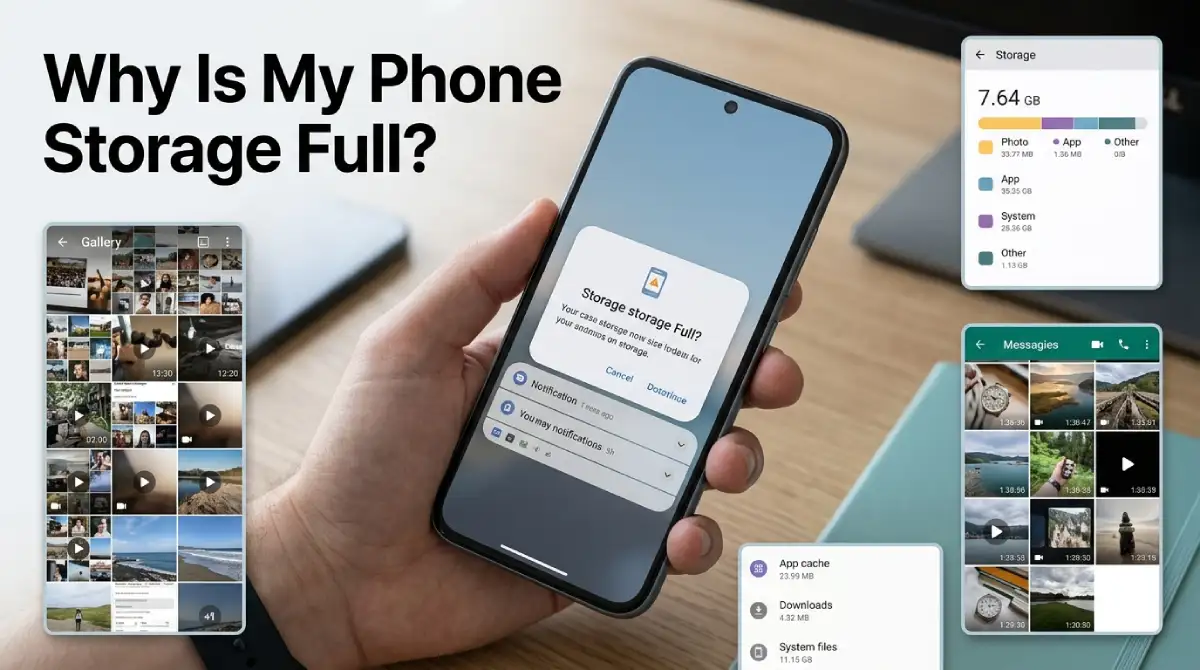
Why is my phone storage full? Blame photos and videos first, then growing apps, then hidden things like cache, chat media, and system files. Deleted photos can even hang around for a month. Your storage screen shows which one is the biggest offender.
Table Of Content
- Why Is My Phone Storage Full? The Usual Suspects
- Storage Isn’t Memory
- How Apps Eat Storage: Install, Data, and Cache
- Check What’s Using Space on Android
- Clear Cache on Android (It’s Only a Short Fix)
- Check What’s Using Space on iPhone
- Deleted Photos Still Take Up Space
- Chat Apps Hoard Media
- What Is System Data on iPhone?
- Which Fix Should You Try First?
- Frequently Asked Questions
- Free Up Space Without Deleting What Matters
You know the moment: you open the camera and get a “storage full” message. Before you uninstall something at random, read on, because the quick fixes differ on Android and iPhone. About to install something new? Our guide on how to tell if an app is safe is worth a minute first.
Why Is My Phone Storage Full? The Usual Suspects
Five things cause most of the damage. The table below sorts them out.
| What fills the space | Why it grows | Where to start |
|---|---|---|
| Photos and videos | High-quality clips add up fast | Review big videos, empty the trash |
| Apps themselves | Games and social apps are huge | Remove or offload ones you ignore |
| App cache and data | Apps save temporary files and downloads | Clear cache per app |
| Chat media | Messaging apps keep every clip | Use the app’s own storage tool |
| System files | The OS keeps its own data | Restart and stay updated |
Here’s the annoying part. None of these shows up as one big file you can drag to the trash. That’s how a modest photo gallery can sit next to a phone that swears it’s full.
Storage Isn’t Memory
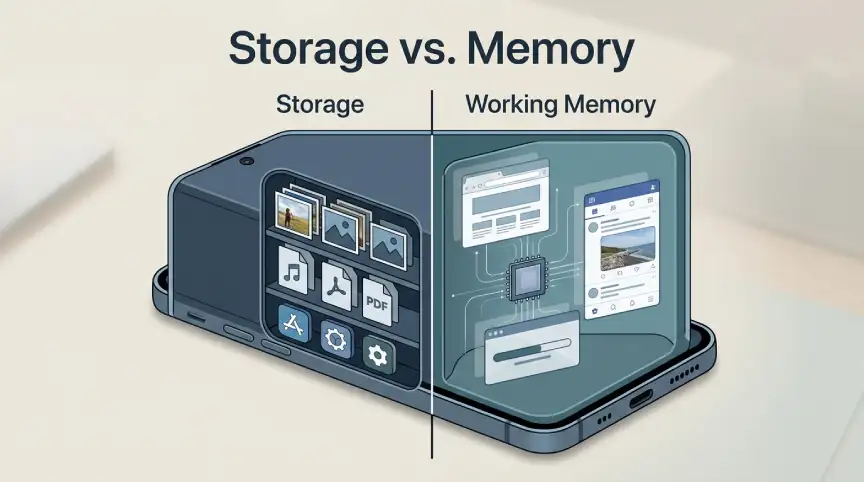
People mix these up, and it sends them down the wrong path. Google’s Pixel help page draws the line clearly. Storage holds your files, like music and photos. Memory is where apps run while you use them.
Honestly, force-closing apps is a habit worth dropping for this problem. It only touches memory. A storage warning needs files to be removed or shrunk.
How Apps Eat Storage: Install, Data, and Cache
Every app takes space three ways. The install is the part you downloaded. Data is what it saves for you, such as offline maps, downloaded shows, and game progress. Cache is temporary stuff the app can rebuild.
Data is the sneaky one. A streaming app looks tiny on your home screen, yet it may hold a pile of offline downloads. Social apps do the same with cached images. Delete the downloads inside the app, and you get that space back.
Apple adds a twist. Its storage guide says cached and temporary data might not count as usage on an app’s page. So the list can undercount what an app really holds. Your phone feels fuller than the numbers suggest.
Check What’s Using Space on Android
Menus shift a little between brands. Here’s the Pixel route, straight from Google:
- Open Settings and tap Storage.
- Tap Free up space.
- Scroll to a category and tap Select files, then pick what to remove.
- Tap Browse if nothing shows up.
Samsung tucks storage under Device care instead. Either way, look for apps sorted by size. Whatever sits at the top is your first suspect. That screen also lists photos, videos, and apps you haven’t used lately.
Don’t forget Downloads. Old PDFs, installers, and forwarded videos pile up for years. The same Free up space screen lets you browse them. If you can download it again, delete it.
Photos are the other big one on Android. Pixel’s help page says the phone can clear photos and videos already backed up when storage runs low. Each Google Account includes 15 GB, shared across Drive, Gmail, and Photos. If that fills up, backups stop, and your phone fills up too.
Clear Cache on Android (It’s Only a Short Fix)
Cache is the safest thing to trim, since apps rebuild it. Start with your three or four biggest apps. Tiny ones won’t move the needle.
- Open Settings, then Apps, then See all apps.
- Tap the app.
- Tap Storage & cache.
- Tap Clear cache.
Don’t hit Clear storage by mistake. Google says it permanently deletes all app data. Clear cache only removes temporary files, though some apps may open slower next time. Google’s Pixel help page for freeing up space walks through both.
Cache grows back, so treat this as a quick fix, not a cure. Android can also tidy neglected apps by itself through its Unused Apps feature. That includes removing their temporary files. We explain it in our guide to stopping apps running in the background on Android.
Check What’s Using Space on iPhone
iPhone keeps it simple. Open Settings, tap General, then iPhone Storage. A colored bar sits on top, with apps listed below by size. Apple often adds recommendations there, like offloading unused apps.
Tap an app, and you’ll see two choices. Offload App frees the space the app itself uses but keeps its documents and data. Delete removes both. If you might come back later, offload is the gentler pick.
You can automate it by switching on Offload Unused Apps in the App Store settings. When space runs low, iOS removes apps you ignore. The icon stays, and a tap reinstalls it. Apple explains the rest in its guide to checking iPhone storage.
Deleted Photos Still Take Up Space
This one catches almost everyone. On iPhone, deleting a photo doesn’t free anything yet. Apple says it sits in Recently Deleted for 30 days before it’s permanently removed. So you can wipe a hundred videos and watch the storage bar barely move.
Want the space now? Open Photos, scroll down to Recently Deleted, unlock it, and delete everything inside. That’s permanent, so check first. Nothing in that album comes back once you empty it.
Photos are the biggest chunk for plenty of people. If you use iCloud Photos, turn on Optimize iPhone Storage in the Photos settings. The phone keeps lighter copies, and the originals live in iCloud. Apple gives you only 5 GB free, so check your plan first.
Chat Apps Hoard Media
Messaging apps save every photo, voice note, and video that lands in a chat. A year of group chats adds up fast. Each app has its own cleanup tool, and most people never open it. Start with the busiest groups, since they usually carry the most media.
In WhatsApp, go to Settings, Storage and Data, then Manage Storage. Telegram keeps its version under Data and Storage, then Storage Usage. For regular iPhone messages, open Settings, General, iPhone Storage, then Messages.
What Is System Data on iPhone?
System Data is that grey block that makes everyone nervous. Apple describes this kind of storage as Siri voices, fonts, dictionaries, caches, and similar system files. You can’t open it, and Apple doesn’t give you a delete button. Some users report that it swells after big updates.
If yours looks huge, restart first. Then clear Safari’s history and website data from Safari’s settings, and offload apps you don’t use. Still strange? Apple Support can check the device.
Which Fix Should You Try First?
If you’re stuck right now, go for the quick wins. On iPhone, empty Recently Deleted. On Android, open Free up space and clear what it suggests. Those two moves often free the most, fastest.
Next, look at the biggest apps and any offline downloads inside them. Then check chat media, since one busy group can hog more than you’d guess. Clear cache last. It’s the smallest win, and it grows back.
Habits matter more than cleanups. Turn on offloading on iPhone or Unused Apps on Android, then forget about it. Delete screenshots once a month, since they pile up quietly. Keep a few gigabytes free, because updates need room to install.
Frequently Asked Questions
Why is my phone storage full when I have nothing on it?
Cache, chat media, and system files take up space you don’t see in your gallery. Check the storage screen for the biggest categories.
Which apps use the most storage?
Games, social apps, and streaming apps with downloads are common culprits. Your storage list sorts them by size.
Does clearing cache delete my data?
No. Clear cache removes temporary files only. Clear storage deletes app data, so skip it unless you want a reset.
How do I free up storage on Android?
Open Settings, then Storage, then Free up space. Clear cache on large apps and delete files you no longer need.
How do I free up storage on iPhone?
Go to Settings, General, iPhone Storage. Offload unused apps and empty the Recently Deleted album.
Free Up Space Without Deleting What Matters
Full phones aren’t random. It’s usually photos, big apps, cache, and chat media stacking up while you weren’t looking. Open the storage screen, clear the obvious stuff, and leave the rest alone.
More practical phone fixes like this live in our Apps category.




No Comment! Be the first one.