


How to Tell If an App Is Safe Before You Hit Install
A polished icon and a high star rating do not guarantee an app is safe. This checklist walks through the developer, permissions, privacy practices, and reviews so you can spot a risky app before it...
How to tell if an app is safe comes down to a few quick checks. Look at the developer, the permissions, and the privacy details first. Check the developer’s name, review the requested permissions, and skim the privacy or Data Safety section before installing anything. A safe app usually comes from an identifiable developer. It also asks only for permissions that match its purpose and shows a steady history of updates. A few quick checks before you tap Install catch most problem apps.
Table Of Content
- How to Tell If an App Is Safe: The Quick Checklist
- Start With the Developer
- Skim the Permissions, Then Move On
- Check the Privacy or Data Safety Section
- Read the Reviews, But Read Them Critically
- Look at the Update History
- Check Download Numbers and General Reputation
- Watch for Misleading Subscription Pricing
- Android vs iPhone: What Differs
- Red Flags That Should Stop You From Installing
- Frequently Asked Questions
- Final Thoughts
Neither the App Store nor Google Play can catch every bad actor before it is listed. Reviewing a few key details yourself takes under two minutes and closes that gap. Here is exactly what to look at, and why each check matters.
How to Tell If an App Is Safe: The Quick Checklist
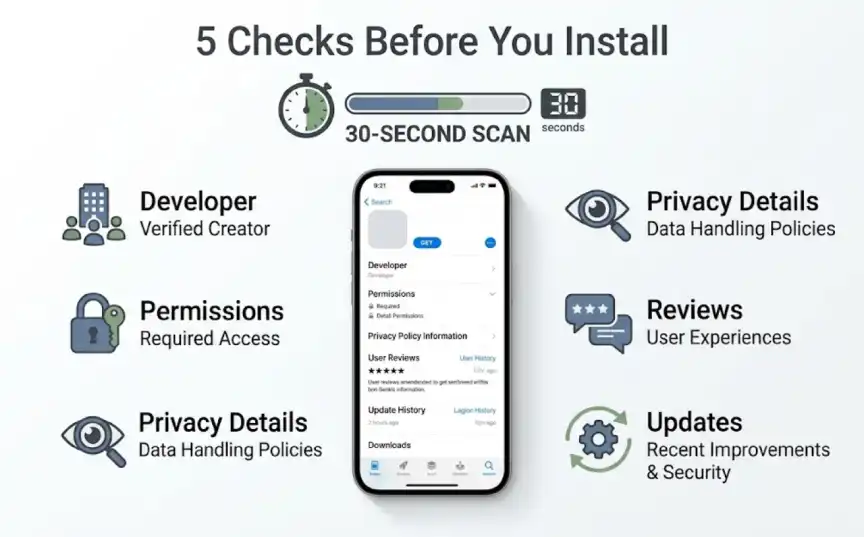
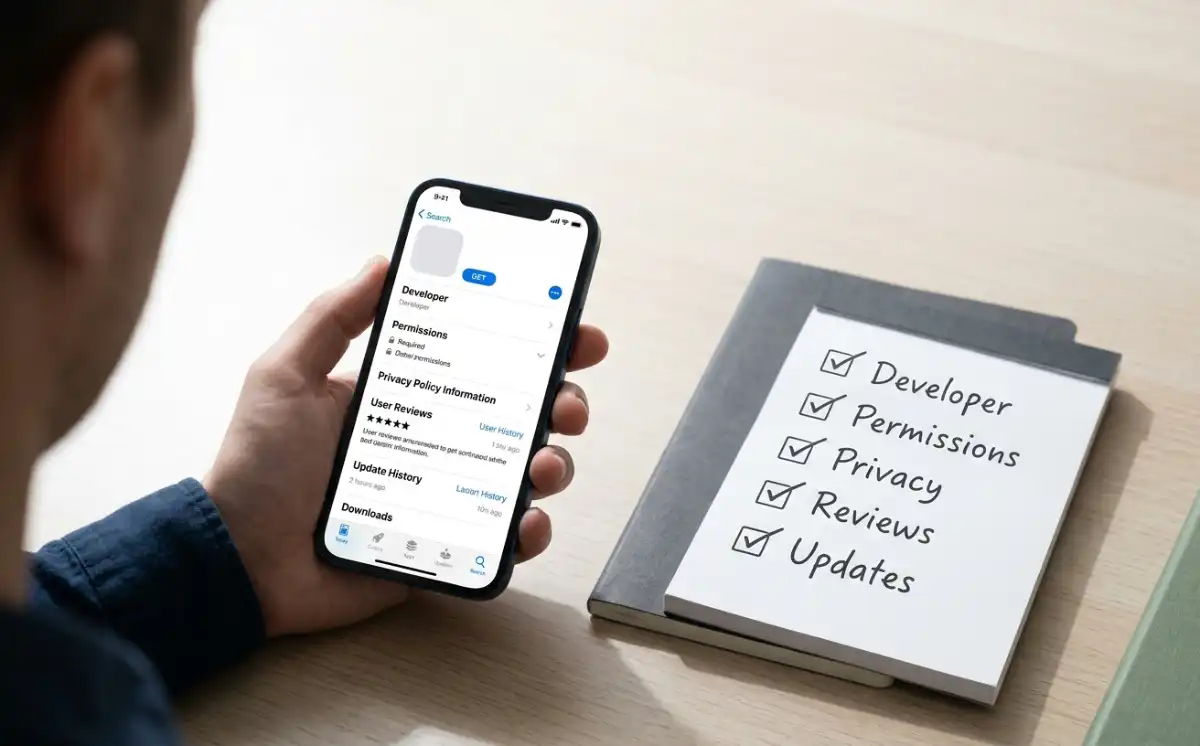
If you only have thirty seconds before installing, run through these five checks in order:
- Developer: Does the name look established, with other apps or a real support page?
- Permissions: Does each request match what the app is supposed to do?
- Privacy details: Does the Data Safety or Privacy Nutrition Label section match the app’s purpose?
- Reviews: Are recent reviews detailed and varied, not generic and clustered?
- Updates: Has the app been updated recently, with real changelog notes?
The sections below walk through each of these in more depth, including official resources from Google Play’s Data Safety documentation and Apple’s App Privacy Details overview if you want to read the platform rules directly.
Start With the Developer
Tap the developer name on any app listing to see what else they have published. A legitimate business or individual developer usually has a small catalog of related apps or a working support website. A developer name that looks randomly generated is worth treating with suspicion. This is especially true if there is no contact information anywhere on the listing.
Search the developer’s name separately if something feels off. A quick search often reveals whether other users have reported problems. It can also confirm whether the company has an established presence outside the app store itself. Real companies leave a trail across websites, social media, and press coverage. Copycat developers usually do not.
Established developers also tend to respond to support requests or reviews left on their listings. A total absence of any developer response is worth noting, especially to complaints about billing or crashes. It suggests nobody is actually monitoring the app. That silence is worth factoring into your final decision.
Skim the Permissions, Then Move On
We covered what app permissions actually mean in a separate guide with more detail. This check can stay brief here as a result. Open the permissions list on the store page and ask whether each request matches the app’s stated purpose. A note-taking app asking for microphone and contacts access has some explaining to do.
This is not about reading every permission line by line before every install. It is a thirty-second sanity check for anything that seems mismatched. If something looks unusual, that is your cue to dig into the other checks below before installing.
Check the Privacy or Data Safety Section
Google Play requires every listing to include a Data Safety section. It describes what data the app collects and whether that data gets shared with third parties. Apple’s App Store shows similar information under its Privacy Nutrition Labels. Both live directly on the app’s store page, just below the description.
A safe app’s data section should roughly match what the app actually does. A weather app collecting your approximate location makes sense. A weather app collecting your contacts, browsing history, and financial information does not. That mismatch alone is a genuine warning sign worth taking seriously.
These labels are self-reported by developers rather than independently verified line by line. That does not make them useless, since most legitimate developers fill them out accurately to avoid store policy violations. Treat an obviously incomplete or vague data section as a smaller warning sign. It carries less weight than a mismatched permission request, but it still counts.
Read the Reviews, But Read Them Critically
Star ratings alone can be misleading, since some developers pad their scores with fake five-star reviews early on. Sort by most recent instead of by highest rated to get a more honest picture. Look specifically for mentions of crashes, unexpected charges, or aggressive ads.
A cluster of very similar five-star reviews posted within the same short window is a common sign of manipulation. Genuine reviews tend to vary in length, tone, and detail. If most reviews read like generic marketing copy, treat the overall rating with a healthy dose of skepticism.
Look at the Update History
Open the “About this app” or version history section to see how often the developer ships updates. Regular updates, even small ones, are usually a good sign. They tend to mean the developer is actively maintaining the app and patching security issues as they come up. An app that has not updated in over a year carries more risk, especially for anything handling sensitive data.
Frequent updates are not automatically a good sign either. Watch the changelog for vague notes like “bug fixes” repeated every single release with no other detail. That pattern can sometimes hide a developer quietly expanding what the app collects without drawing attention to it.
Check Download Numbers and General Reputation
A install count in the millions is not proof of safety on its own. A brand-new app with almost no downloads and a suspiciously high rating deserves extra scrutiny for the opposite reason. Cross-reference the app’s name with a quick web search to see if any tech outlets have written about it. Coverage from an established source adds a layer of confidence that store listings alone cannot.
Be especially careful with apps that closely mimic a popular app’s name or icon. Fake versions of banking apps, cryptocurrency wallets, and messaging apps are a common scam pattern. Always search for the official developer name rather than trusting the icon alone.
Pay attention to the exact spelling of both the app name and the developer name as well. Scammers frequently use names that differ from the original by a single character or an extra word. This small detail is often the fastest way to spot an impersonation attempt.
Watch for Misleading Subscription Pricing
Some apps pass every other check on this list yet still rely on deceptive subscription tactics. A free trial that silently converts into an expensive annual charge is a common complaint. It shows up constantly in app store reviews. Read the pricing details on the store listing carefully before starting any trial.
Look specifically for the trial length and the exact renewal price, both usually listed near the purchase button. If this information feels buried or vague, treat that as its own small red flag. Setting a calendar reminder before a trial ends is a simple habit that avoids most surprise charges entirely.
Android vs iPhone: What Differs
Google Play’s more open ecosystem means slightly more scrutiny is worth applying on Android. Sideloading apps from outside the Play Store removes Google’s baseline review process entirely. Stick to the official store unless you have a specific, informed reason not to. Android’s Play Protect feature also scans installed apps periodically, so keep it enabled.
Apple’s App Store runs a stricter review process before any app goes live. This filters out a larger share of obviously malicious apps before they ever reach users. It does not mean every approved app is automatically trustworthy, though. Data collection practices and misleading subscription pricing still slip through Apple’s review from time to time.
Red Flags That Should Stop You From Installing
A few warning signs are serious enough to skip an app entirely rather than proceed with caution. Requests for permissions with zero connection to the app’s function are one clear signal. An app demanding payment information before you can even see what it does is another.
Watch for a few specific patterns in the listing itself. Broken English throughout the description is one. Screenshots that clearly do not match the actual app is another. A developer name that changes between separate visits to the same listing is a third. Any single one of these might have an innocent explanation. Two or more appearing together is a strong reason to close the listing and move on.
Frequently Asked Questions
How can I tell if an app is safe?
The fastest way is to check the developer, review the permissions requested, and read the Data Safety section. Recent updates and genuine-sounding reviews are also good signs.
How do I check an app before downloading it?
Look at the developer page, skim requested permissions, and check the Data Safety or Privacy Nutrition Label section. A quick web search for the developer’s name can also confirm legitimacy.
Are app store ratings enough to trust an app?
Not on their own, since ratings can be manipulated with fake reviews. Sort by most recent reviews and look for detailed, varied feedback instead of relying on the star average alone.
What permissions are suspicious?
Any permission unrelated to the app’s core function is worth questioning, like a calculator app requesting your contacts. Our full app permissions guide covers this in more depth.
How can I identify a fake app?
Fake apps often mimic a popular app’s name or icon closely while coming from an unfamiliar developer. Searching for the official developer name usually exposes the difference quickly.
What should I check in Google Play’s Data Safety section?
Check whether the listed data collection matches what the app is actually supposed to do. Also note whether the app shares your data with third parties for advertising.
Final Thoughts
None of these checks take more than a couple of minutes individually. Most apps will pass every one without issue. The goal is not to distrust every app you download. It is to build a habit that catches the small number that genuinely deserve a second look.
A single suspicious detail rarely means an app is dangerous on its own. It is the combination of a few warning signs together that usually tells the real story. Running through this checklist a handful of times will make the process feel automatic within a few weeks.



No Comment! Be the first one.