



Can Steam Deck Run Windows Games? The Truth About Proton in 2026
Steam Deck runs a Linux-based system, yet most PC games are built for Windows. This guide explains how Proton bridges that gap, why some Windows games still refuse to launch, and what actually...
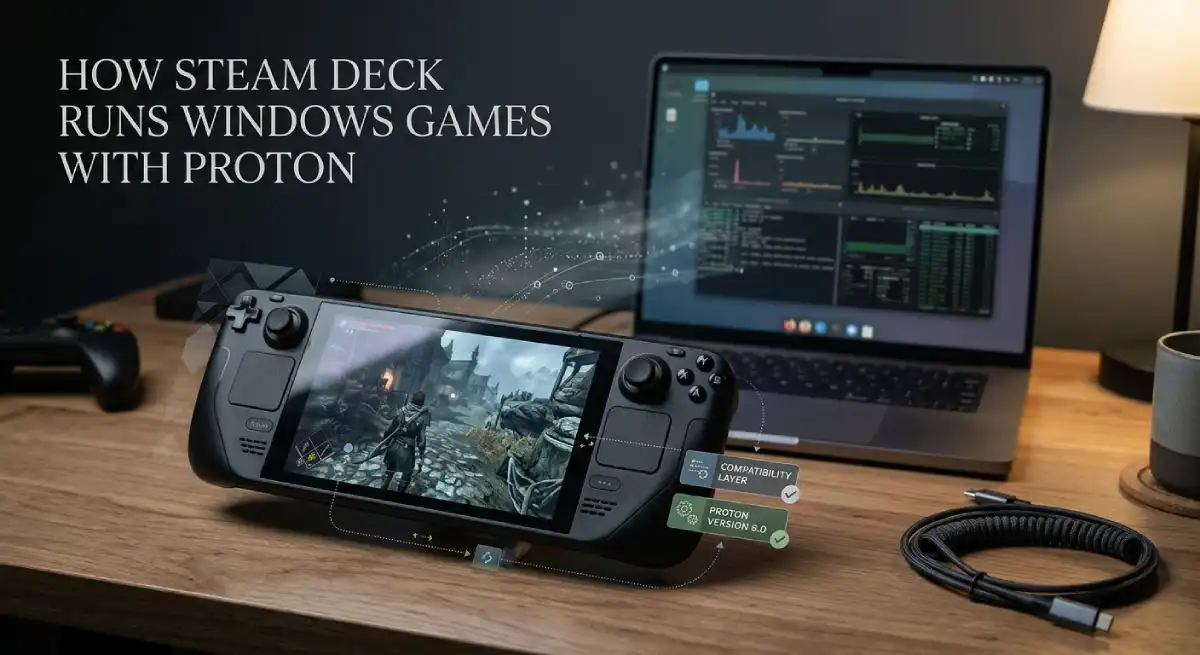
Yes, Steam Deck can run most Windows games through a built-in compatibility tool called Proton. Proton translates Windows game code into instructions the Deck’s Linux-based system can understand. It does not work for every title, mainly because of anti-cheat software and a handful of launcher-related quirks.
Table Of Content
- What Is Proton, Exactly?
- How Proton Actually Translates a Game
- Why Some Games Run Perfectly, and Others Don’t
- Real Examples of How This Plays Out
- What About Games From Epic Games Store or GOG?
- Choosing a Specific Proton Version When a Game Struggles
- Does Proton Slow Down Performance?
- How to Tell If a Game Will Work Before You Buy It
- What Happens When Valve or Proton Updates?
- Frequently Asked Questions
- Final Thoughts
We already broke down what the Steam Deck’s Verified, Playable, and Unsupported badges actually mean. Proton sits behind those labels. Knowing how it works explains why those ratings exist, rather than just memorizing four colored icons.
What Is Proton, Exactly?
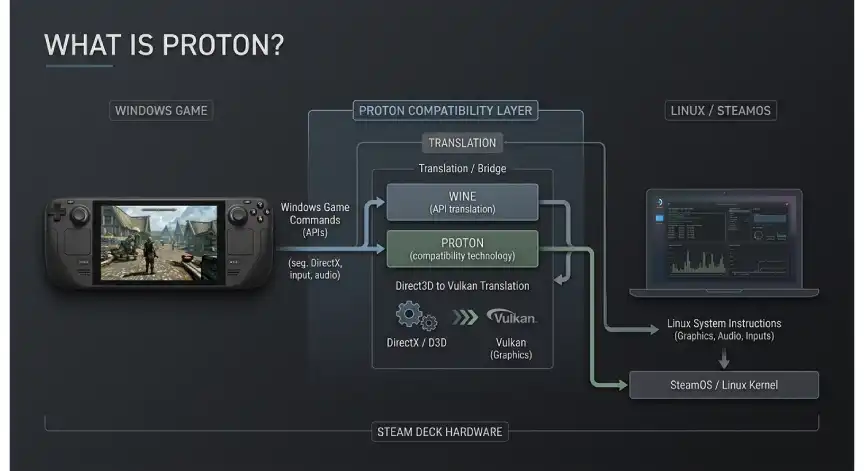
Proton is Valve’s compatibility layer, built on top of an open-source project called Wine. Steam Deck does not run Windows itself. It intercepts the instructions a Windows game sends and reroutes them into Linux equivalents. The game never realizes it is not talking directly to Windows.
Valve maintains Proton in close partnership with the Wine development community. Every update aims to patch specific compatibility gaps discovered through testing and player reports. That ongoing maintenance is a big reason the situation keeps improving year over year.
Proton did not appear overnight. Valve spent years building Linux gaming support through SteamOS before the Steam Deck existed at all. The Deck simply gave that groundwork a mainstream reason to matter. Millions of players now depend on it every single day.
How Proton Actually Translates a Game
Think of Proton as a live interpreter standing between two people who speak different languages. A Windows game issues a command expecting a Windows-style response. Proton intercepts that command and converts it into something Linux understands. It then returns the response in a format the game expects.
This translation happens for graphics calls, file system requests, and input handling all at once. Modern graphics translation, in particular, has become remarkably efficient over the past few years. Many players cannot tell the difference in day-to-day gameplay once a title runs smoothly.
Why Some Games Run Perfectly, and Others Don’t
Translation alone does not guarantee a flawless experience. A handful of specific factors decide whether a game runs great, works with quirks, or refuses to launch. Understanding these factors makes the badge system from our ratings guide much easier to interpret.
Anti-cheat software causes the most failures by far. Many multiplayer games use kernel-level anti-cheat systems built exclusively for Windows. Those systems often block anything that looks unusual, including Proton, even though the player is not cheating.
Digital rights management tools create similar friction in some single-player titles. A DRM system checking for a specific Windows registry entry may simply fail to find it. Controller mapping issues are usually smaller, often just requiring a manual layout change inside Steam.
Launcher requirements round out the list of common obstacles. Some games force you through a separate login screen before the actual game loads. That extra step usually still works through Proton. It can occasionally add friction that a native Windows PC would not have.
A useful pattern to remember: story-driven single-player games tend to work best. Older titles and most indie games also perform well, since they rarely rely on kernel-level anti-cheat. Competitive multiplayer shooters and battle royale titles carry the highest risk of failure.
Real Examples of How This Plays Out
Elden Ring and Baldur’s Gate 3 both run at Platinum on ProtonDB. That means players report a flawless experience with no tweaks needed. Neither game uses invasive anti-cheat, which fits the pattern described above. Both titles also carry an official Verified badge from Valve.
Fortnite sits at the opposite end of the spectrum and will not launch on Steam Deck at all. Epic’s anti-cheat system actively blocks Linux-based environments as a security measure. No Proton version or manual tweak currently gets around this restriction.
Valorant follows a similar pattern for the same underlying reason. Riot’s anti-cheat runs at the kernel level and explicitly refuses to operate outside of native Windows. These two examples explain why online shooters carry more risk than most other genres.
What About Games From Epic Games Store or GOG?
Non-Steam launchers like Epic Games Store and GOG Galaxy are not part of the Steam ecosystem. Because of that, they do not receive an official Valve compatibility badge. You can still run many of these games through desktop mode, using Proton independently of the Steam client itself.
The setup involves installing the launcher directly and adding your games as non-Steam shortcuts. This process has enough steps and edge cases that it deserves its own dedicated walkthrough. We will cover the full installation process for Epic Games and GOG titles in an upcoming guide.
Choosing a Specific Proton Version When a Game Struggles
Steam lets you override the default Proton version for any individual game. Right-click the title in your library, open Properties, and switch to the Compatibility tab. From there, you can pick an older or experimental Proton build instead of the default.
This matters because newer is not always better for every single title. A game might run perfectly on Proton 8 but hit a bug on the newest release. Community forums and ProtonDB reports often mention the exact version that worked for a specific problem game.
Experimental builds, labeled Proton Experimental, get the newest fixes before they reach the stable version. Trying this build first is a reasonable move for a game marked Unsupported. If it does not help, reverting to the default takes only a few seconds.
Does Proton Slow Down Performance?
Translation used to carry a noticeable performance cost in Proton’s early years. That gap has narrowed significantly thanks to continued optimization from Valve and the Wine project. Most Verified and Playable games now perform within a small margin of native Windows benchmarks.
Some technically demanding titles still show a bigger gap than others. Games using cutting-edge graphics features sometimes need extra translation work that costs a few frames per second. For the vast majority of your library, though, the difference will not be something you notice during actual play.
How to Tell If a Game Will Work Before You Buy It
Checking a title’s official compatibility badge is still your fastest first step. Our guide to Steam Deck’s Verified, Playable, and Unsupported ratings walks through exactly what each label means. A Verified or Playable badge is a strong signal that Proton handles that specific game well.
For anything marked Unsupported or Unknown, a quick search on ProtonDB gives you a second, community-driven opinion. Players report their own experience using a Platinum through Borked scale, often with specific notes on required tweaks. Reading two or three recent reports usually tells you what to expect.
What Happens When Valve or Proton Updates?
Proton receives regular updates, often tied to new Steam Deck system releases. Each update can fix compatibility for games that previously failed to launch correctly. It can occasionally introduce a new issue for a small number of titles as well.
Game developers also push their own updates independently of Valve’s schedule. A patch meant for Windows players can sometimes break something that previously worked through Proton. This is part of why compatibility badges get rechecked periodically rather than assigned once and forgotten.
Frequently Asked Questions
Can Steam Deck run Windows games?
Yes, through Proton, a compatibility layer that translates Windows game code for the Deck’s Linux-based system. Most single-player and many multiplayer games run this way successfully.
What is Proton on Steam Deck?
Proton is Valve’s built-in tool that lets Windows games run on Linux-based hardware like the Steam Deck. It is built on the open-source Wine project.
Why do some games not work on Steam Deck?
The most common cause is anti-cheat software that blocks non-Windows environments entirely. DRM checks and launcher requirements can also cause smaller issues.
Does anti-cheat work on Steam Deck?
Some anti-cheat systems now support Linux and work fine through Proton. Many others remain Windows-only and will block the game from launching at all.
Can Steam Deck run Epic Games Store titles?
Yes, by installing the Epic Games launcher through desktop mode and running it via Proton. This requires extra manual setup compared to native Steam titles.
Do Windows games need modification to run on Steam Deck?
No modification to the game itself is required in most cases. Proton handles the translation automatically once the game is installed and launched.
Final Thoughts
Proton is the reason Steam Deck can double as a genuine Windows gaming PC despite running Linux underneath. Most of your existing library will work with little to no extra effort. The exceptions almost always trace back to anti-cheat, not to Proton itself falling short.
Keep an eye on compatibility badges and ProtonDB reports as you build out your library. Ratings shift as both Valve and individual developers ship updates. A five-minute check before buying a new release can save you a refund request later.




No Comment! Be the first one.